Linux Thin Client Kiosks
Features
Back in the late 90's when computers had hit an all time low in price, a new phenomenon had started up. Cheap, small, and diskless "thin clients" became popular. You could buy hundreds of these small clients for just a few hundred dollars each. Since all or most of the software ran on the server each client could essentially be upgraded by just buying a better server. Sounded just like what we were looking for, or so we thought.
The Rise and Fall of the Machines
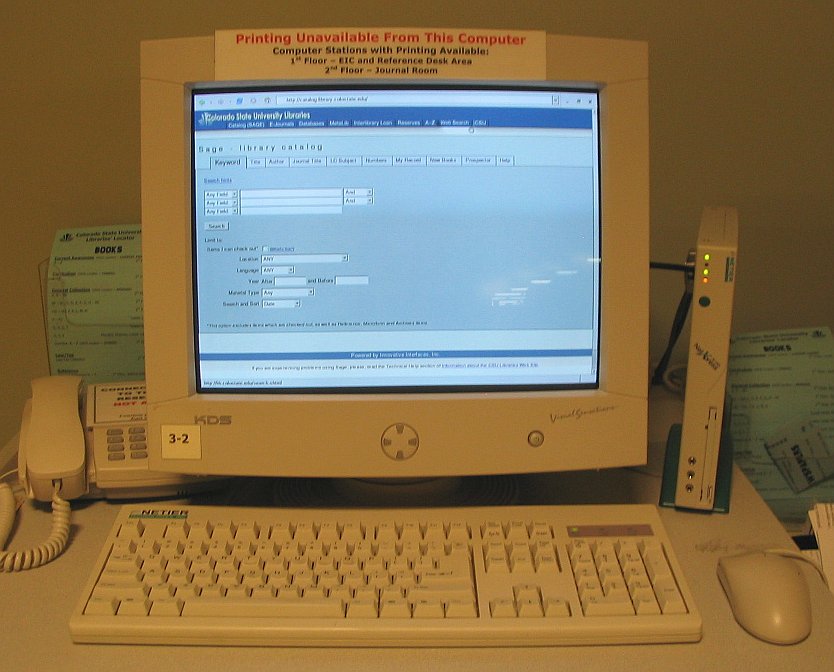
In 2000 the large university library I worked for got talked into buying a few hundred Netier NetXpress machines along with the Rapport and Citrix server software. We soon realized what a mistake we had made. Each machine had NT4 embedded on it so we still had to pay for a license for each machine, the Rapport software only worked about 50% of the time, and we spent more time rebooting our Citrix servers than using them. With computers continuing to drop in price and double in performance we soon discovered it was more cost effective to just buy a few hundred high end machines for our users every couple of years. Thus, our thin client reign was over as quickly as it had started, and the machines were all put into storage...until now.
The Revival
After seeing a few things I had done with Linux, I was asked to see if we could make Linux run on these little machines. All they had to do was run a modern web browser, limited to specific domains, which the general public could use. They were each equipped with a 24MB DiskOnChip, 64MB of RAM, an AMD 266 MHz processor, and a 10/100 ethernet card with a really old and buggy version of PXE. I had heard of the Linux Terminal Server Project and how they had Linux software to run full graphical sessions on cheap diskless hardware. With this information in hand I went forth and created some great looking clients.
Practice Makes Perfect
I decided to install LTSP 4.0 on a RedHat Linux v9.0 test machine I already had up and running. Installation was a breeze with their installation script and step-by-step manual. I could not, however, get tftp to work with these thin clients even after following instructions on various web sites about how to get Linux and tftp to work with older versions of PXE. Thankfully a ROM-o-matic boot disk with PXE support (use version 5.3.8 or better) got me back on my feet for the time being. The bootdisk downloaded the PXE image (pxelinux.0), which then downloads the kernel and initrd image and booted them onto the thin clients. The clients came up fine and looked great on these little machines. I was worried they might be a bit slow but the X Windows interface was quite responsive and really left me impressed. Since these clients were to be used in a public place they must be locked down as much as possible, unfortunately this is where Linux really seemed to lag behind. Locking the desktop down seemed almost impossible and I knew before long users would have these machines in a unworkable state. After some Google searching and Linux desktop reviews, I discovered that KDE had recently focused on a kiosk mode for their window manager.
Now for the Real Thing
After a bit of begging, I rounded up a new machine to install RedHat's Fedora Core 2. Fedora Core 2 includes KDE v3.2.2 and a nice looking desktop which would hopefully impress my boss and the general public. After installation and updates I created a new user that I could lock down using the KDE Kiosk Tool. Since we already have a Windows 2003 DHCP server running in the building, we figured it would just be simpler if we didn't have another Linux DHCP sever running beside it. However, for some reason any DHCP options sent from the W2K3 server would have three 0's appended to the end of it. Rather then search for a fix I decided to take the lazy way out and install LTSP v4.1 beta. Amazingly it fixed the problem and I highly recommend it.
DiskOnChip Observations
This probably won't apply to 99% of the LTSP group but if your trying to make your DiskOnChip boot linux, than I hope this will save you hours of work. Basically, to make a long story short, booting linux from a DiskOnChip using LILO or GRUB is more work then its worth. DiskOnChip support patches have been made but none of them ever made it into the official LILO or GRUB source. The easiest way to get these thin clients going is to use SYSLINUX and Norton Ghost. SYSLINUX is a DOS (or DOS clone) based Linux boot loader and Norton Ghost is a drive and partition cloner. I used an 8MB compact flash card with a USB reader/writer, formatted it as a FAT16 drive, loaded the kernel and initrd image from the L.T.S.P. project, copied and modified the SYSLINUX files then used Ghost to clone my 8MB compact flash drive. Then I used Ghost to write the image to the DiskOnChip on the clients.
{gcmsPageBreak title="Firefox Setup"}
Firefox in Kiosk Mode
I couldn't think of a better browser to use for our Kiosks than Firefox. It's simple, fast, reliable, and secure. The only worry I had is how to lock it down? After a bit of searching and testing I came up with a working solution. First download the full screen (autohide) plug-in here. This allows Firefox to be started in a full screen mode and hides some of the bars. Next adjust the preferences according to how you would like them. I basically set the homepage and shut everything off that I could; making sure the user could still access all the pages they would need without boxes popping up. Next create a [profile]/chrome/userChrome.css file and add the following info to it:
/* Remove the Bookmarks, Tools and Help menus */ menu[label="Bookmarks"], menu[label="Tools"], menu[label="Help"] { display: none !important; } /* Removes specific menu items */ menuitem[label="Open File..."], menuitem[label="Print Preview"], menuitem[label="Print..."], menuitem[label="Save Page As..."], menuitem[label="Import..."], menuitem[label="Preferences"], menu[label="Toolbars"], menu[label="Sidebar"] { display: none !important; } /* Hides specific right-click context menu items */ #context-setWallpaper, #context-saveimage, #context-savelink, #context-savepage, #context-sendpage, #context-blockimage, #context-bookmarklink, #context-bookmarkpage { display: none !important; }
These options restrict the menubar, certain configuration options, and the right-click menu items. Add or remove what you think is necessary.
While the above configuration helps a lot, we still have some problems to overcome. First a couple of security concerns, I don't want users to be able to create new profiles or modify the user preferences in any way. A quick chown root:root on the profiles.ini and the prefs.js helps to keep the changes away. Just make sure that the user can still read these files (chmod 444 profiles.ini prefs.js). Firefox was also never ment to have one profile used for 20 sessions at the same time. To work out some of these problems I wrote a startup script that I put into the [profile]/.kde/Autostart folder. This script will delete any extra preferences files, bookmarks, cookies, and remove the lock file so Firefox will launch more than one session. It then launches Firefox in fullscreen mode and when Firefox is closed, it will automatically restart it. The only problem with this method is that if two or more clients start Firefox at the exact same moment, the lock file doesn't get removed fast enough and the some of the client will complain that the profile is already in use. This rarely happens and could be overcome by cloning users and assigning each thin client its own separate user account or maybe just a smarter startup script. It's not a big deal for us so we're happy with the way it is.
{gcmsPageBreak title="Proxy Filtering"}
Hosts, Guardians, and Squids.
I'm sure a popular request for many kiosks is "How do I restrict users from specific websites?". Many solutions exist for this problem ranging from a modified hosts files to a multi-format filter called DansGuardian. If you just want to restrict a few sites, a modified hosts file is going to be the easiest. Just give any domain you don't want users to access the IP 127.0.0.1. Many premade lists exist on the Internet if you want to get a head start. By default LTSP uses your system wide hosts file, but if you want to restrict it to only LTSP clients just remove the symbolic link in your /opt/ltsp/i386/etc/ and create a new hosts file there.
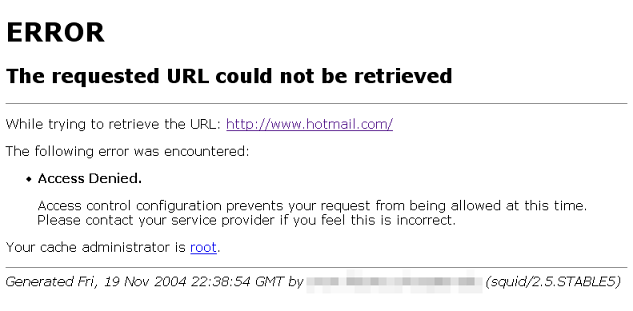
We needed something much more restrictive for our setup. I was given a list of six or so domains that the user was allowed to visit and everything else must be denied. To do this I used a proxy program that is included with most current Linux distros today called Squid. Squid allows you to write rules that will either block or allow certain domains and protocols. By default Squid will use the standard web proxy port and your browser must be configured to use it if you want your restrictions to apply. If you don't mind a system wide policy, Squid can be run in transparent mode. In transparent mode, it looks as if you are connecting straight to the Internet (no proxy configuration needed) but in fact you are really going through Squid.
To allow access to a limited number of domains you will need to edit your squid.conf file. About half-way down you will come to access controls. By default it allows any access to the listed ports. You'll want to delete or comment out most of this area leaving the following information:
acl all src 0.0.0.0/0.0.0.0 acl manager proto cache_object acl localhost src 127.0.0.1/255.255.255.255 acl to_localhost dst 127.0.0.0/8 acl goodIPs dstdomain .verisign.com www.allthingsgeek.com myotherdomain.org # Only allow cachemgr access from localhost http_access allow manager localhost http_access deny manager # Allow requests to listed hosts http_access allow goodIPs # And finally deny all other access to this proxy http_access allow localhost http_access deny all
Results and Final Thoughts
I ended up very pleased with the results, impressing both the Windows and Linux gurus alike. We are currently running about 20 thin clients around the building with a dual 700 MHz server with 2GB of RAM. This seems to be about the limit for this server when all the machines are in use at once. The clients and server have been running 24/7 for over 60 days without any stability problem. The only problem I've noticed since the clients went live is that users can still download files to the user's home directory. It doesn't matter because user's can't access the files after downloading them and I simply delete them once a week or so. Maybe I can come up with a better solution in the near future.